A better ⌘⇧4.
printscreen is a small menu-bar app for Mac. Drag to take a shot, find it waiting at the edge of the screen, and mark it up before anyone has to ask what you meant.
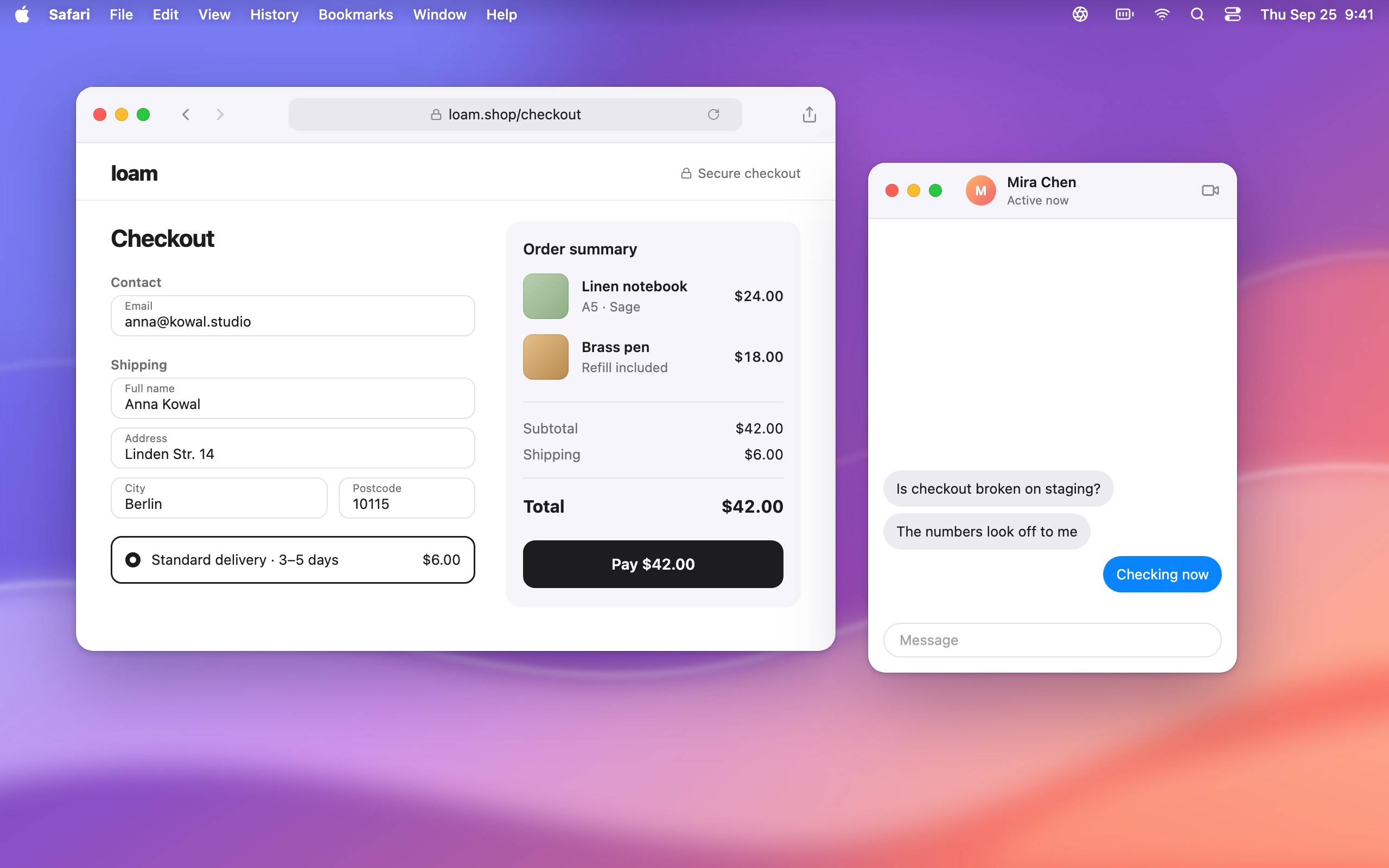
Drag across the screen to take a shot. space for a window, return for the whole screen.
Drag, and it’s taken.
Press ⌘⇧2 and the screen holds still, open menus and tooltips included. Drag an area and watch its size in pixels, with a loupe for the last few. Press Space to take a whole window instead, shadow and all.
- drag
- An area
- space
- A window
- return
- The whole screen
- ⇧
- Lock to one axis while dragging
- space
- Move the selection while dragging
- esc
- Cancel
Every shot waits at the edge.
Each screenshot lands in a glass dock at the side of your screen. Hover one to see it large. Drag it straight into a chat, a ticket or a doc, or click it to edit. The dock tucks itself away after a few seconds and slides back when you rest the pointer at the edge.
- Edit, copy, show in Finder or delete from the preview
- On the left or right edge of the screen
- Hides after 3, 5, 10 or 30 seconds, or stays
Say it on the picture.
Boxes, arrows, numbered steps, text, and a blur for the email you shouldn’t send. Every mark stays editable: open the shot next week and the arrow still moves.
- ArrowA
- RectangleR
- OvalO
- HighlighterH
- PenP
- TextT
- BlurB
- CounterN
- CropC
Three shortcuts. Change any of them.
- ⌘⇧2Capture
- ⌥⌘⇧2Capture and edit
- ⌘⇧1Show history
The quiet parts.
After each shot, your call
Save it, copy it, open the editor, or any mix of the three.
Your folder, plain PNGs
Files land in Pictures/printscreen, or any folder you pick.
Nothing gets lost
If the folder is gone, say an unplugged drive, the shot is kept safe and the dock tells you.
Lives in the menu bar
No Dock icon. Launch it at login and forget it’s there.
Shutter and shadow
The sound and the window shadow are both yours to turn off.
Native all the way
Liquid Glass, light and dark, and it respects Reduce Motion.
Questions
What does printscreen need?
A Mac with macOS 26 Tahoe or later, and the Screen Recording permission. It asks once and takes you straight to the right switch in System Settings.
How much will it cost?
Pricing will be announced at launch.
Does it upload my screenshots?
No. There’s no account and no cloud. Screenshots are PNG files in your folder, and the app doesn’t talk to the network.
Can I change a screenshot after saving it?
Yes. printscreen keeps the original next to your file, so every arrow, box and blur stays editable. Or save a copy and keep both.
Does it record video or scrolling pages?
Not yet. This first version does still screenshots, and does them well.